
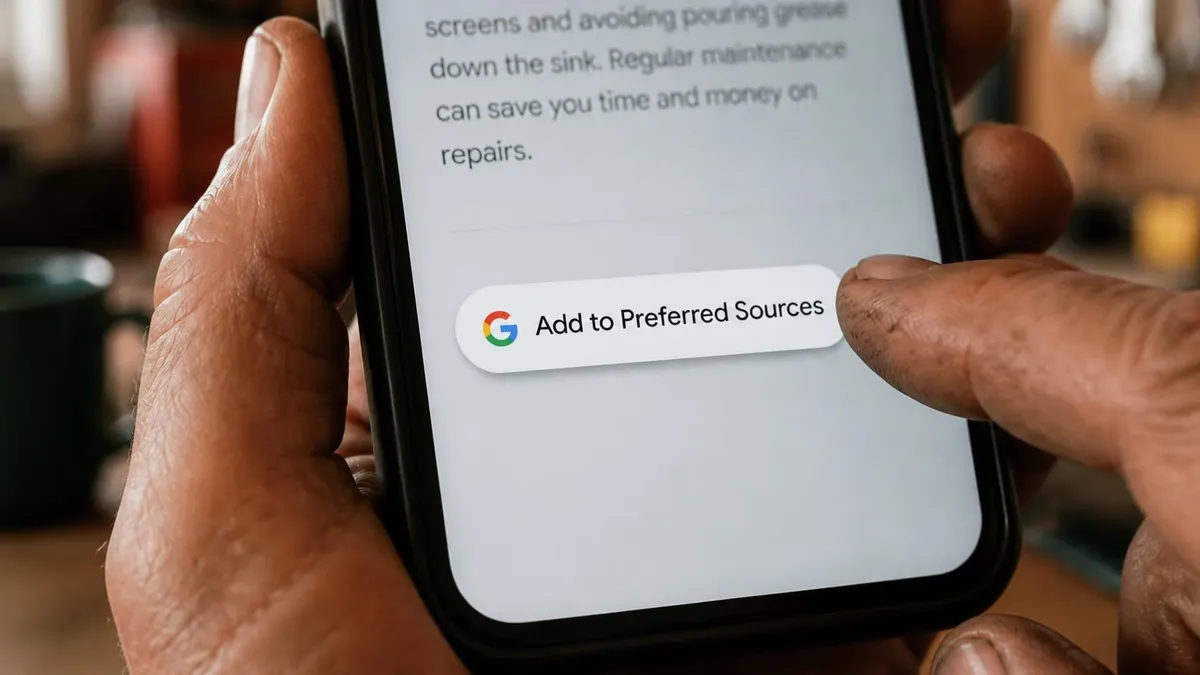
Google Preferred Sources Button: Step-by-Step Setup
Free guide · About 15 minutes
Google Preferred Sources lets your readers tell Google, "Show me more from this site." When someone picks you, your new posts are more likely to show up for them in Top Stories, and your links can carry a "Preferred" label in AI Overviews and AI Mode.
This guide walks you through adding Google's button to your blog, step by step. No signup, and most of it is copy and paste.
How to use this guide
Check eligibility first
Part 1. If Google doesn't list your site, there's no point adding a button yet.
Pick one way to add the button
Part 2. Google's official button is the best option. If you'd rather not touch code, use the link.
Place it and test it
Parts 4 and 5. Where the button gets clicks, and how to confirm it works.
Part 1
Check if your site qualifies
Three steps. No signup, no install.
Open Google's tool
Go to google.com/preferences/source. The page is titled "Source preferences."
Search for your site
In the box that says "Search by name or website," type your main domain, like yourbusiness.com.
Find it in the list
If your site shows up, you qualify. Checking the box next to it adds it to your own list, under "Your sources."
Good to know
- Google lists whole domains and subdomains (yourbusiness.com or blog.yourbusiness.com), not folders like yourbusiness.com/blog. Search for the main domain.
- Google's tool notes that sources not updated regularly may be unavailable. If you don't show up, publish for a few months and check again.
- If you use Google Search Console, go to Settings, then Search generative AI, and make sure it's set to "Include," which is the default. If it says "Exclude," your links won't appear in AI Overviews or AI Mode at all, preferred or not.
Is it worth it for you?
It pays off if you publish at least once a month and customers actually read your posts. A few basic pages with no blog won't get much from it yet. Google says people are twice as likely to click through to a preferred source, but only for readers who picked you.
Part 2
Add the button to your site
There are three ways. Pick one.
Option A · Recommended
Google's official button
Best for most websites with a blog. Paste 2 lines of code.
Option B · No code
A plain link
Best for Wix, sites that won't run custom code, emails, and social profiles.
Option C
Your own button image
Best for matching your brand's look. A link plus an image.
Option A: Google's official button (recommended)
This is the option Google recommends. It looks like a Google button and shows in your visitor's language. When someone taps it, Google shows a quick confirmation and brings them right back to your post. It takes two pieces: one line that loads the button, and one line that says where it shows up.
Step 1: Add the loading line once, for the whole site
Paste this line in the spot your website builder uses for code that loads on every page. It's usually called "head code," "custom code," or "tracking code."
Copy this
<script async src="https://news.google.com/swg/js/v1/publisher.js"></script>Before you paste
Back up your site first (on Shopify, duplicate your theme). Add the line below whatever is already there, and don't delete or change any existing code.
Where to paste it
Step 2: Add the button where you want it
Paste this line exactly where the button should appear:
Copy this
<div google-add-preferred-source-btn></div>Find your editor's code block
WordPress: a Custom HTML block (in Elementor, an HTML widget). Shopify: a Custom Liquid section. Webflow: a Code Embed element. Squarespace: a Code block. GoHighLevel: a Custom Code element.
Paste and save
Some editors don't show the button while you edit. Check the preview or the live site.
Use your blog post template
Add it to the template, not to each post, so it appears on every post at once, old ones included.
Two optional settings
The button is light by default. For a dark one, add data-theme="dark". It shows in each visitor's browser language. To always show English, add data-lang="en". For example:
<div google-add-preferred-source-btn data-theme="dark" data-lang="en"></div>Option B: A link, no code at all
Google also gives you a direct link that opens its settings page with your site already searched. Put it on any button, menu item, or text link, on any website builder. Just swap in your domain:
Copy this
https://www.google.com/preferences/source?q=yourdomain.comThe one downside: the reader goes to Google's settings page and stays there.
Use it outside your site too
The link works anywhere you can paste one: your newsletter footer, email signature, Facebook page, Instagram bio, or the follow-up email after a job. One short line is enough:
- Contractor: "Want our seasonal maintenance tips before the rush? Add us to your Google sources so they're easy to find."
- Gym: "Like these training tips? Add us on Google and new posts will be easier to spot."
- Dental office: "Found this guide helpful? Add us as a preferred source on Google for more care tips."
Option C: Your own button image
Want a banner in your own colors? Wrap your image in the same link. Google also offers official translated button graphics you can download.
Copy this
<a href="https://www.google.com/preferences/source?q=yourdomain.com">
  <img src="path/to/your/button.png" alt="Add us as a preferred source on Google">
</a>
Part 3
Not technical? Hand it off
You don't have to do this yourself. Either way, make sure your site is backed up first.
Option 1
Send this to whoever manages your website
Please add Google's Preferred Sources button to our blog post template only. Load Google's script once, place the button at the end of each post, and keep it off our service and contact pages. Google's instructions: https://developers.google.com/search/docs/appearance/preferred-sources
Option 2
Give this to an AI assistant
Use one that can work in your browser, such as Claude in Chrome. With a regular chat assistant, paste the same text and it will walk you through where to click.
Copy this prompt
I want to add Google's Preferred Sources button to my blog.
Google's official instructions: https://developers.google.com/search/docs/appearance/preferred-sources

1. Add this line once to my site-wide head code. If something needs to be installed, suggest it and wait for my OK:
<script async src="https://news.google.com/swg/js/v1/publisher.js"></script>

2. Add the button to my blog post template, below the post content:
<div google-add-preferred-source-btn></div>

3. Don't delete or change any existing code, and stop for my approval before every save.

4. When you're done, open one live post and confirm the button shows up.
Part 4
Where to put the button
A button nobody sees doesn't help. These spots work, in this order:
At the end of every post
The reader just finished and got value. Start here.
After your most useful section
In a long post, a button right after your best tip catches readers at their most interested.
Outside your site
Use the link from Option B in your newsletter, email signature, and social profiles.
Where not to put it
Service, pricing, and contact pages. Those pages have one job, which is getting the call. And keep it to one ask per page, two at most in a long post. More than that and people tune it out.
Part 5
Check that it works
Clear your cache
If your site uses a cache or a speed plugin, clear it. An old cached copy of the page is a common reason the button doesn't show up.
Open a live post on your computer and your phone
You should see a button with the Google logo that says "Add to Preferred Sources." Make sure it isn't cut off or squeezed on mobile.
Click it
Google shows a short confirmation, then sends you back to the post, and the button changes to show you've added the site.
Quick tips
Three things that save you time
Load the script only once
One line in the head code covers the whole site. A second copy won't help. You can place as many buttons as you like.
Check it on your phone
Most visitors will see it there first.
It doesn't replace good posts
It's a nudge with readers who already like you, not a guaranteed Top Stories spot. New people still find you through useful posts, strong Google reviews, the local signals AI tools look at, and steady work on your local visibility.
Questions and Answers
Does Google Preferred Sources help my rankings?
Not for everyone. It changes results only for people who picked your site. For them, your fresh posts are more likely to appear in Top Stories, and your links can carry a "Preferred" label in AI Overviews and AI Mode. Everyone else sees regular results, so your content still has to earn the click.
Do I need the button, or is a link enough?
A link works fine. The button takes readers to a quick Google confirmation and brings them back to your post. The plain link takes them to Google's settings page and leaves them there. Use the button on blog posts if your website builder accepts custom code. Use the link in emails, social profiles, and anywhere code can't go.
Is Google Preferred Sources useful for a website without a blog?
Usually not. Google's source tool notes that sources not updated regularly may be unavailable, and a static site rarely has anything new to show. If you don't publish, spend that time on your Google reviews and your Business Profile first, then start a simple monthly post.
Where do preferred sources show up in Google?
In the Top Stories section of search results, and as a labeled link in AI Overviews and AI Mode when your site appears in an answer. Google says the feature works in Top Stories worldwide, in every language where Google Search is available.
Can a reader remove my site later?
Yes. Readers manage their list in Google's source preferences and can uncheck any site whenever they want. Keep your posts useful and they have a reason to keep you.
Do I have to sign up or get approved by Google?
No. If your site shows up when you search for it in Google's source preferences tool, it's eligible. Google's documentation says the button and link are optional ways to help readers add you. You don't need them to appear as a preferred source.